
Setup · Checklist
First Screen Setup Checklist for Smooth Streaming
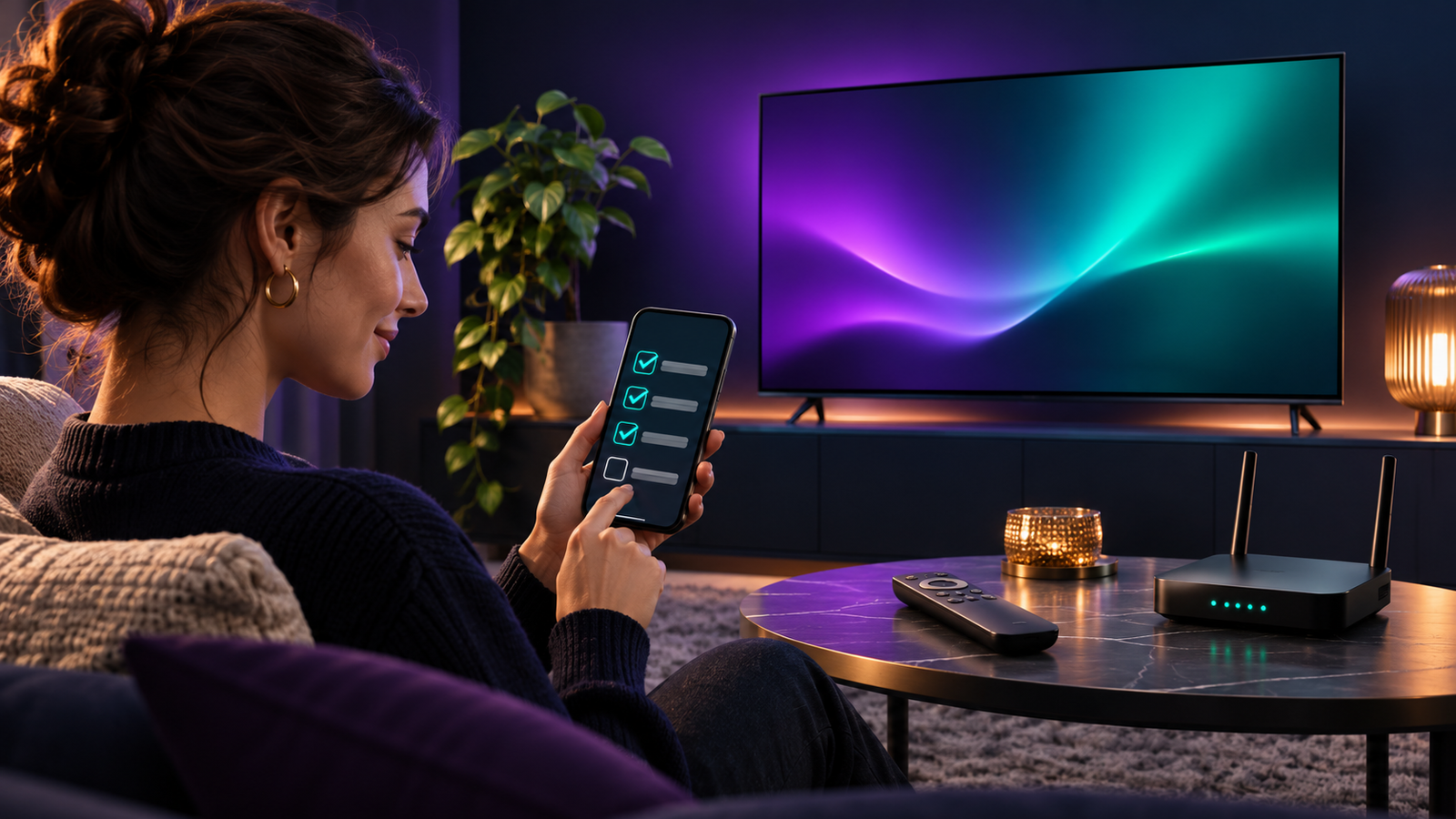
first screen setup checklist - A reliable first session starts before you enter any account details. Use this checklist to prepare one main screen, confirm that its connection is stable, and keep the information needed for support close at hand. Completing one device from start to finish also gives you a known-good reference before you add another screen.
1. Record the exact device and software version
Find the full model number in the device settings or on its rear label, then note the operating-system version. Similar-looking televisions can use different app stores, so the exact model matters more than the brand name alone. Install pending system updates, restart the device, and confirm that its date and time are set automatically.
2. Test the connection beside the screen
Run a network test where the television or streaming device actually sits, preferably during the hours when you normally watch. A fast result beside the router does not prove that the signal reaches another room consistently. If possible, compare Wi-Fi with Ethernet and keep the connection method that remains stable for several minutes.
3. Install one recommended player
Use the player named in your setup instructions and obtain it from the device official app store. Installing several similar apps at once creates confusion because menus, login formats, and playback settings differ. Open the chosen player once, accept only the permissions it needs, and verify that it launches normally before entering private details.
4. Organize the activation message
Use an email address you can access on a trusted device and keep the order reference available. Never post credentials in public comments or shared screenshots. After activation, test live and on-demand content for a few minutes, check sound, and save one favorite so you know navigation works.
What to do next
Apply one change at a time and test it on the screen you use most. For account-specific questions, use only the contact routes published on originetvs.com and keep passwords, payment security codes, and one-time codes private.
first screen setup checklist action checklist
Prepare your television, connection, email, and player in the right order before activating Origine TV.
Begin with the screen you will actually use, verify the current plan details, and keep your order information organized. One careful test is more useful than changing several settings at once.
Review the current options on Origine TV plans. If a device or billing detail remains unclear, use the verified WhatsApp contact or the support page and include the exact model or order reference.
- Record the exact device model and connection type.
- Confirm the plan period and final price before checkout.
- Use one verified support thread for clear follow-up.
Common questions about first screen setup checklist
Which device should I set up first?
Start with the screen you expect to use most often. It becomes your reference when checking other devices.
Should I change several settings if playback pauses?
No. Change one setting at a time and test again so you can identify what made a difference.