
Live viewing · Checklist
How to Prepare Streaming for a Live Event
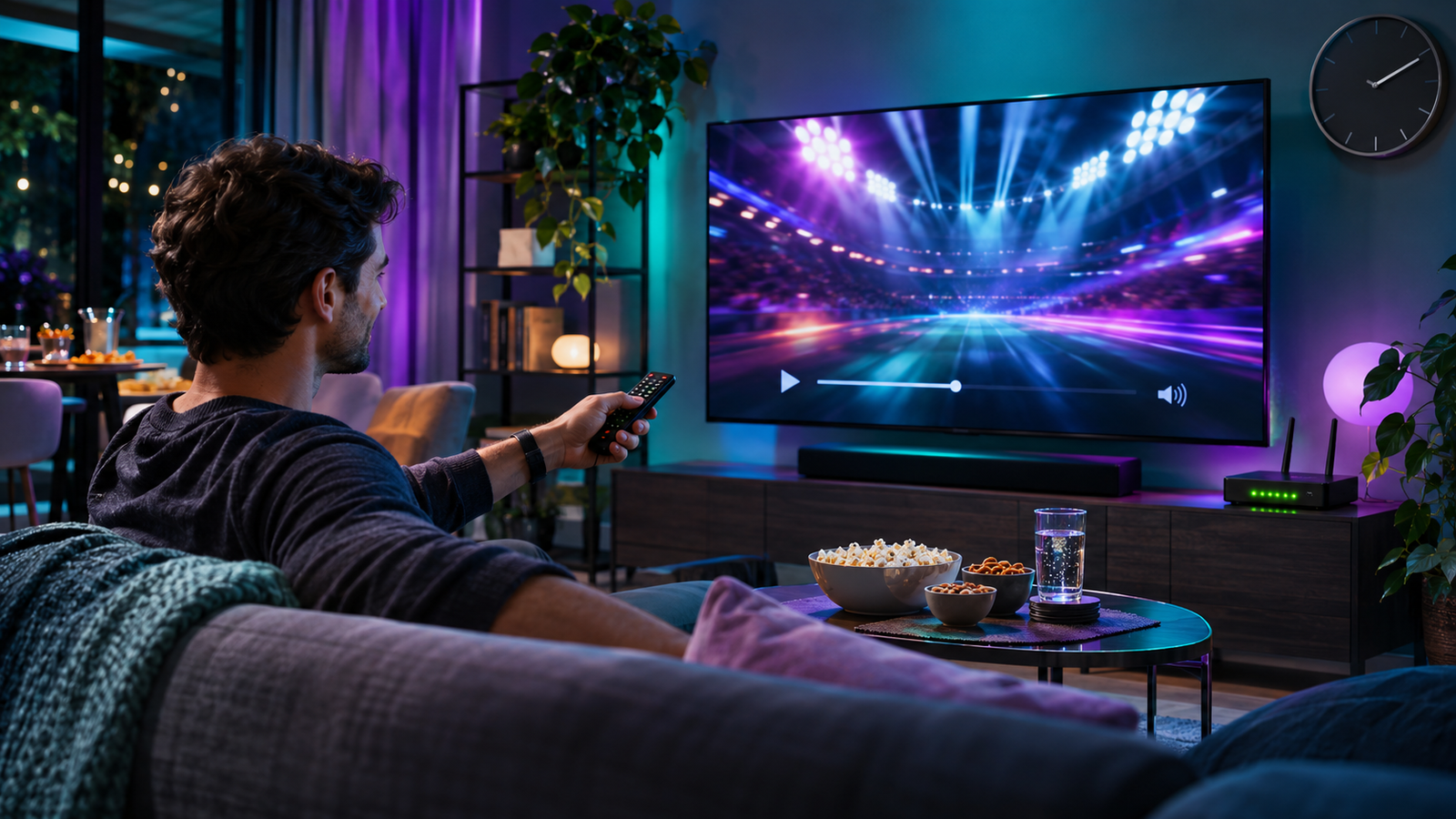
prepare streaming for live events - Prepare streaming for a live event before the opening moment, because live content offers less time to recover from an update or network problem. A focused fifteen-minute check can confirm that the player opens, the remote responds, sound is correct, and the household connection has enough capacity.
Complete updates earlier in the day
Install device and player updates well before the event, then restart and reopen the app. Avoid beginning a major television firmware update shortly before viewing because it may take longer than expected or reset display settings. Confirm that automatic date and time are correct.
Test live content, not only a recording
Open a live stream for at least ten minutes. Check motion, audio synchronization, remote response, and whether playback remains stable. Recorded content can buffer farther ahead, so it does not reproduce every condition that affects a live event.
Protect the home connection
Pause large downloads, cloud photo uploads, game installations, and unused high-resolution streams. If the main screen supports Ethernet, use it. Otherwise, verify that Wi-Fi is strong at the screen and avoid moving network equipment immediately before the event.
Prepare concise support details
Keep the device model, player name, connection type, approximate time, and order reference available. If a problem occurs, say whether it affects one stream, all live content, or the entire player. Never include passwords or one-time codes in a support message.
What to do next
Apply one change at a time and test it on the screen you use most. For account-specific questions, use only the contact routes published on originetvs.com and keep passwords, payment security codes, and one-time codes private.
prepare streaming for live events action checklist
Use a practical pre-event routine for the player, network, picture, audio, and backup support information.
Begin with the screen you will actually use, verify the current plan details, and keep your order information organized. One careful test is more useful than changing several settings at once.
Review the current options on Origine TV plans. If a device or billing detail remains unclear, use the verified WhatsApp contact or the support page and include the exact model or order reference.
- Record the exact device model and connection type.
- Confirm the plan period and final price before checkout.
- Use one verified support thread for clear follow-up.
Common questions about prepare streaming for live events
How early should I test?
Test earlier in the day and run a final short check about fifteen minutes before the event.
Why does recorded content work when live content pauses?
Recorded content can buffer ahead, while a live stream must deliver new segments continuously with much less reserve.